Flipkart

Showing posts with label Apache. Show all posts

Monday, October 8, 2018

How to Install Apache HTTPD on Linux 6

To Install using YUM package:-

# yum install httpd -y

or

# up2date httpd

Install Apache From Source :-

Download URL : http://www-us.apache.org/dist//httpd/httpd-2.4.29.tar.gz

https://httpd.apache.org/download.cgi#apache24

1. Extract the gz file using tar command

# tar -xvzf httpd-2.2.31.tar.gz

# cd httpd-2.2.31

2. Configure the files

#./configure --prefix=PREFIX

3. Compile

# make

Compile the package using make command

4. Install

# make install

finally install using make install command

Start the Apache:-

To Start the httpd server we can use both the following ways

# /etc/init.d/httpd start

or

#apachetl -k start

clip_image001

To Stop :-

Similarly for stopping the apache server, we can use the stop command

# /etc/init.d/httpd stop

or

#apachetl -k stop

Permanent chkconfig Configuration:-

# chkconfig httpd on

To check whether Apache is running or not:-

Below command will check for the port 80 which is the default configured port for Apache HTTPD.

# netstat -tulpn | grep :80

If apache is running we will see the response like below

tcp 0 0 :::80 ::* LISTEN 0 2710371 7760/httpd

Wednesday, October 3, 2018

How do I change the default port of Tomcat?

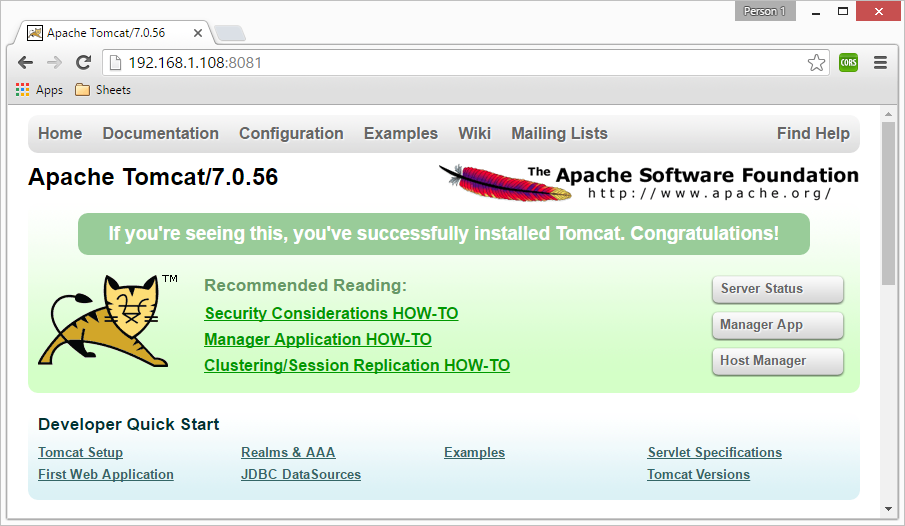
Tomcat is most popular web server for hosting java based websites. If you want to install tomcat on your system use following tutorials. By default tomcat runs on port 8080. This tutorial will help you to change tomcat server default port.

Stop tomcat server if it is already running.

Open <Tomcat_Home>/conf/server.xml file for editing.

Look for port *8080* in the xml file and replace with any available port.
<Connector port="8080" protocol="HTTP/1.1"
connectionTimeout="20000"
redirectPort="8443" />

If there is other tomcat running on the same server, you have to change SHUTDOWN port as well.
<Server port="8005" shutdown="SHUTDOWN">

Start tomcat server.

clip_image001

Tuesday, July 3, 2018

How to install apache web server on window 7

Install Apache anywhere. But , In this scenario we install in C drive

Download latest version or your required Apache web server setup from site

Apache httpd for Microsoft Windows

Stable Release - Latest Version:

http://httpd.apache.org/download.cgi

Microsoft Visual C++ 2005 SP1 Redistributable Package (x86) or latest verion

https://www.microsoft.com/en-us/download/details.aspx?id=5638

Install this setup

clip_image001

Extract the file

We will install Apache in C:Apache2, so extract the ZIP file to C: drive

Apache can be installed anywhere on your system, but you will need to change the configuration file paths accordingly…

Configure Apache

Apache is configured with the text file in httpd.conf contained in the Apache > Apache24>conf folder. Open it with your favorite text editor or notepad.

There are several lines you should change for your production environment:

Change line

From

Define SRVROOT "/Apache24"

To

Define SRVROOT "C:/Apache24"

listen to all requests on port 80:

Listen :80

ServerName localhost:80

Change DocumentRoot

From

DocumentRoot "${SRVROOT}/htdocs"

<Directory "${SRVROOT}/htdocs">

To

DocumentRoot "C:\Apache24\htdocs"

<Directory "C:\Apache24\htdocs">

Then save your file .

Go to C:\Apache24\bin

install Apache as a Windows service

The easiest way to start Apache is to add it as a Windows service. From a command prompt, enter:

cd Apache2bin

# httpd -k install

clip_image002

And run the ApacheMonitor.exe file

Check Apache is running or not in task manager

clip_image003

Open Apache Monitor

clip_image004

If Apache service is running then green icon ,if not then red icon shows.

Now , test

localhost:80

Great Apache server started.

clip_image005

Thursday, June 21, 2018

How to Install Apache HTTPD on Linux 7

To Install using YUM package:-

# yum install httpd -y

[root@localhost ~]# yum install httpd

Loaded plugins: fastestmirror, langpacks

--> Running transaction check

---> Package httpd.x86_64 0:2.4.6-80.el7.centos will be installed

--> Processing Dependency: httpd-tools = 2.4.6-80.el7.centos for package: httpd-2.4.6-80.el7.centos.x86_64

--> Processing Dependency: /etc/mime.types for package: httpd-2.4.6-80.el7.centos.x86_64

--> Processing Dependency: libaprutil-1.so.0()(64bit) for package: httpd-2.4.6-80.el7.centos.x86_64

--> Processing Dependency: libapr-1.so.0()(64bit) for package: httpd-2.4.6-80.el7.centos.x86_64

--> Running transaction check

---> Package apr.x86_64 0:1.4.8-3.el7_4.1 will be installed

---> Package apr-util.x86_64 0:1.5.2-6.el7 will be installed

---> Package httpd-tools.x86_64 0:2.4.6-80.el7.centos will be installed

---> Package mailcap.noarch 0:2.1.41-2.el7 will be installed

--> Finished Dependency Resolution

Dependencies Resolved

=============================================================================================================================================================================================================================================

Package Arch Version Repository Size

=============================================================================================================================================================================================================================================

Installing:

httpd x86_64 2.4.6-80.el7.centos base 2.7 M

Installing for dependencies:

apr x86_64 1.4.8-3.el7_4.1 base 103 k

apr-util x86_64 1.5.2-6.el7 base 92 k

httpd-tools x86_64 2.4.6-80.el7.centos base 89 k

mailcap noarch 2.1.41-2.el7 base 31 k

Transaction Summary

=============================================================================================================================================================================================================================================

Install 1 Package (+4 Dependent packages)

Total download size: 3.0 M

Installed size: 10 M

Is this ok [y/d/N]: Is this ok [y/d/N]: Is this ok [y/d/N]: Y

Downloading packages:

(1/5): apr-util-1.5.2-6.el7.x86_64.rpm | 92 kB 00:00:00

(2/5): apr-1.4.8-3.el7_4.1.x86_64.rpm | 103 kB 00:00:00

(3/5): httpd-tools-2.4.6-80.el7.centos.x86_64.rpm | 89 kB 00:00:00

(4/5): mailcap-2.1.41-2.el7.noarch.rpm | 31 kB 00:00:00

(5/5): httpd-2.4.6-80.el7.centos.x86_64.rpm | 2.7 MB 00:00:02

---------------------------------------------------------------------------------------------------------------------------------------------------------------------------------------------------------------------------------------------

Total 1.1 MB/s | 3.0 MB 00:00:02

Running transaction check

Running transaction test

Transaction test succeeded

Running transaction

Installing : apr-1.4.8-3.el7_4.1.x86_64 1/5

Installing : apr-util-1.5.2-6.el7.x86_64 2/5

Installing : httpd-tools-2.4.6-80.el7.centos.x86_64 3/5

Installing : mailcap-2.1.41-2.el7.noarch 4/5

Installing : httpd-2.4.6-80.el7.centos.x86_64 5/5

Verifying : httpd-tools-2.4.6-80.el7.centos.x86_64 1/5

Verifying : apr-1.4.8-3.el7_4.1.x86_64 2/5

Verifying : mailcap-2.1.41-2.el7.noarch 3/5

Verifying : httpd-2.4.6-80.el7.centos.x86_64 4/5

Verifying : apr-util-1.5.2-6.el7.x86_64 5/5

Installed:

httpd.x86_64 0:2.4.6-80.el7.centos

Dependency Installed:

apr.x86_64 0:1.4.8-3.el7_4.1 apr-util.x86_64 0:1.5.2-6.el7 httpd-tools.x86_64 0:2.4.6-80.el7.centos mailcap.noarch 0:2.1.41-2.el7

Complete!

# systemctl start httpd