- Current TIME in the 24-hour format hh:mi:ss
- Current TIME in the 24-hour format hh:mi:ss:mmm
- Current TIME in the 12-hour format hh:mi:ss:mmmAM
Now, these days excel shortcuts is necessary for maintain day to day reports. So, we are sharing with you the basic excel shortcuts with you.
General Program Shortcuts
First, let’s take a look at some general keyboard shortcuts for manipulating workbooks
Open Excel using Run
Open Run > Type Excel then enter. It will open excel sheet.
Command's | Descriptions |
Alt or F10 | Turn key tips on or off |
Alt+ F4 | Close Excel |
Alt+A | Go to the Data tab |
Alt+Enter | Insert a hard return within a cell (while editing a cell) |
Alt+F | Open the File tab menu |
Alt+F1 | Create an embedded bar chart based on select data (same sheet) |
Alt+F11 | Open the Microsoft Visual Basic For Applications Editor |
Alt+F8 | Create, run, edit, or delete a macro |
Alt+H | Go to the Home tab |
Alt+H+B | Add a border |
Alt+H+D+C | Delete column |
Alt+H+H | Select a fill color |
Alt+M | Go to the Formulas tab |
Alt+N | Open the Insert tab |
Alt+P | Go to the Page Layout tab |
Alt+Page Up/Down | Move one screen to the right or left in a worksheet |
Alt+R | Go to the Review tab |
Alt+W | Go to the View tab |
Alt+X | Go to the Add-ins tab |
Alt+Y | Go to the Help tab |
Ctrl+0 | Hide the selected columns |
Ctrl+1 | Open the Format Cells dialog box |
Ctrl+5 | Apply or remove strikethrough |
Ctrl+9 | Hide the selected rows |
Ctrl+Alt+V | Open the Paste Special dialog box |
Ctrl+B | Add or remove bold to the contents of a cell, selected data, or selected cell range |
Ctrl+C or Ctrl+Insert | Copy contents of a cell, selected data, or selected cell range |
Ctrl+End | Go to the most bottom right used cell |
Ctrl+F | Search in a spreadsheet, or use Find and Replace |
Ctrl+F1 | Show or hide the ribbon |
Ctrl+F11 | Insert a new Excel Macro sheet |
Ctrl+F2 | Open Print Preview |
Ctrl+F4 | Close Excel sheet |
Ctrl+F9 | Minimize the workbook window |
Ctrl+Home | Move to the beginning of a worksheet |
Ctrl+I | Add or remove italics to the contents of a cell, selected data, or selected cell range |
Ctrl+Left/Right Arrow | Move to the farthest cell left or right in the row |
Ctrl+N | Create a new Excel |
Ctrl+O | Open an older workbook |
Ctrl+Page Up/Down | Move to the previous or next worksheet |
Ctrl+S | Save Excel workbook |
Ctrl+Shift+$ | Apply currency format |
Ctrl+Shift+% | Apply percent format |
Ctrl+Shift+& | Apply outline border |
Ctrl+Shift+_ (Underline) | Remove outline border |
Ctrl+Shift+Space | Select the entire worksheet |
Ctrl+Shift+U | Expand or collapse the formula bar |
Ctrl+Space | Select the entire column |
Ctrl+Tab | Switch between open workbooks |
Ctrl+U | Add or remove underline to the contents of a cell, selected data, or selected cell range |
Ctrl+Up/Down Arrow | Move to the top or bottom cell in the column |
Ctrl+V or Shift+Insert | Paste contents of a cell, selected data, or selected cell range |
Ctrl+W | Close a Excel sheet |
Ctrl+X | Cut contents of a cell, selected data, or selected cell range |
Ctrl+Y | Redo an action |
Ctrl+Z | Undo an action |
Delete | Remove the contents of a cell, selected data, or selected cell range |
Enter | Complete an entry in a cell or the formula bar |
Esc | Cancel an entry in a cell or the formula bar |
F1 | Open the Help page |
F11 | Create a bar chart based on selected data (on a separate sheet) |
F12 | Open the Save As dialog box |
F2 | Edit a cell |
F3 | Paste a cell name (if cells are named in the worksheet) |
F5 | Go to any cell by pressing F5 and typing the cell coordinate or cell name. |
F7 | Check spelling |
F9 | Calculate all worksheets in all Open workbooks |
Home | Go to the leftmost cell in the current row (or go to the beginning of the cell if editing a cell) |
Left/Right Arrow | Move one cell to the left or right |
Page Up/Down | Move one screen up or down in a worksheet |
Shift+F11 | Insert a new Excel worksheet in existing Excel |
Shift+F2 | Add or edit a cell comment |
Shift+F3 | Insert a function |
Shift+F9 | Calculate active worksheets |
Shift+Left/Right Arrow | Extend the cell selection to the left or right |
Shift+Space | Select the entire row |
Shift+Tab | Go to the previous cell |
Tab | Go to the next cell |
Up/Down Arrow | Move one cell up or down |
Practice more make you learn quickly.
You just need to run the trouble shooter. Follow steps below:
1. Open Control Panel.
2. View by Small icons, select Troubleshooting.
3. Under System and Security, click Fix problems with Windows Update.
4. Click Next.
Then the troubleshooter will start detecting problems.
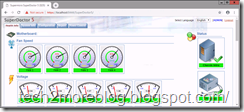
SD5 monitors target nodes hardware's system health or availability in data centers in real-time and provide alerts to administrators.
SuperDoctor® 5 Key Benefits and Features
Supports monitoring, control, and management functions.
- Hardware Monitoring: fan speed, temperature, voltage, chassis intrusion, redundant power failure, power consumption, disk health, raid health, and memory health.
- 20 Types of system information: BIOS, Baseboard, Chassis, Computer System, Disk Drives, Memory, Network, Printer, Processor, System Slot, IPMI, Power Supply, Account, Operating System, Process, Service, Share, Time Zone, OEM Strings, and System Cfg Options.
Download the setup from below link:
https://www.supermicro.com/products/nfo/SMS_SD5.cfm
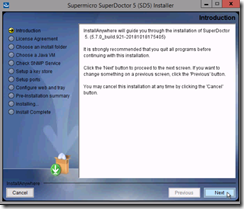
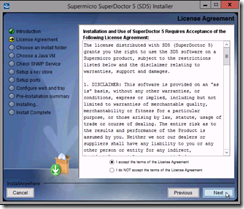
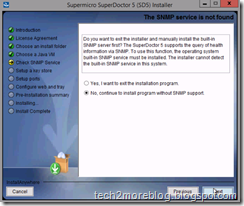
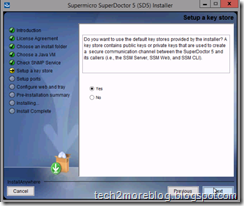
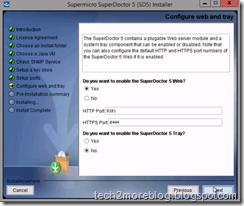
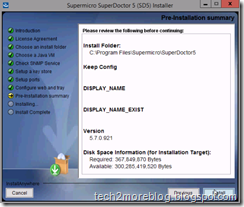
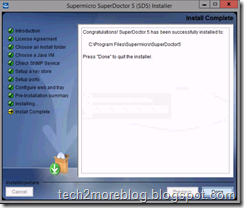
Start the installer and proceed to next steps as per your requirements.
Login links : https://localhost:8444
Username : ADMIN
Password : ADMIN
Windows Server 2012 not booting on ESXi 5.0
bios440.filename = "bios.440.rom"
mce.enable = TRUE
cpuid.hypervisor.v0 = FALSE
vmGenCounter.enable = FALSE
Power on VM and Server 2012 will install and run
backup failed for server (microsoft.sqlserver.smoextended)
Enable the sa Login:
1. Connect to the SQL Server instance using SSMS and go to Security. Expand Security, go to Logins.
2. You can see the sa account is disabled when you install SQL Server using Windows Authentication mode.
3. Right-click on the sa account and go to Login Properties
By default, the Enforce password policy is checked. (if you don’t want to provide a complex password for the sa account, you can uncheck this option. However, this is not recommended.)
4. Click on the Status page. By default, the sa account will be disabled. Click on the Enabled button to enable the sa account. Click on Ok to close the sa Login Properties.
sa account is enabled and you will be able to login to the SQL instance using the sa account.
Method 2:
Enable SQL Server SA Account with Script
1. Login into SQL Server using Windows Authentication mode and open Management Studio.
2. Click "New Query" to create a query, and type followings:
USE [master]
GO
ALTER LOGIN [sa] WITH PASSWORD='password'
GO
ALTER LOGIN [sa] ENABLE
GO
Method 3: