Flipkart

Showing posts with label VMware. Show all posts

Sunday, August 26, 2018

Create New Virtual Machine on VMware

Follow the steps for creating new VM on VMware.

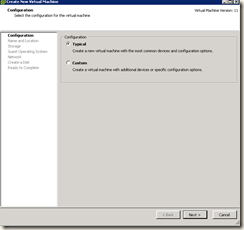
Select the Configuration type and Click on Next.

  • Typical
  • Custom

clip_image001

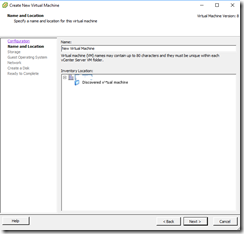
Now give your machine name as per your project.

clip_image002

Check the data store resources.

clip_image003

On next Screen, select the Guest Operating System

  • Windows
  • Linux
  • Other

clip_image004

clip_image005

From following list choose the OS specific version.

clip_image006

clip_image007

clip_image008

Check the Network card and Click Next.

clip_image009

Give Hard Disk size and Click Next.

clip_image010

VM is Ready to Complete.

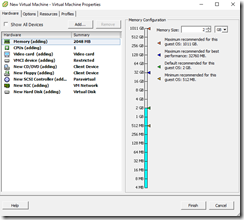
For configure RAM and other settings click on edit option.

clip_image011

Re-Check the VM configurations and Finish.

clip_image012

Now VM is created.

Friday, June 22, 2018

Installing Window Server 2012 R2 on Vmware ESXi 6.0.0

Connect VMware ESXi using vSphere client

clip_image001

Once you connected below screen will come.
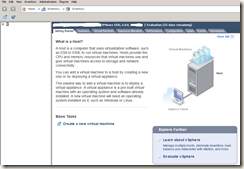
clip_image002

Now , create new virtual machine.

clip_image003

Select the configuration type.

clip_image004

Give VM name and Next.

clip_image005

On this screen data store is shown, capacity storage and freed space.

clip_image006

Now, select the Guest Operating System.

i.e Windows, Linux or Other. In this scenario we are installing Windows Server

clip_image007

Select the Network card and Adapter. Mention the number of NIC's.

clip_image008

Select the Virtual disk size and provisioning.

clip_image009

Preview the virtual machine settings.

clip_image010

Attach the bootable CD and start.

clip_image011

Select the language and all settings as per your requirement.

clip_image012

clip_image013

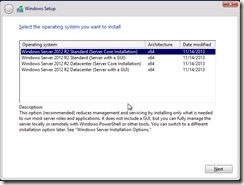
Choose operating system.

clip_image014

clip_image015

clip_image016

clip_image017

clip_image018

clip_image019

Type system password and finish.